Take control of your home network by using an open source firmware on your router
• Content by Petri Heikkinen • Photo credits: OpenWrt Project, Stumble

In this article we’ll be installing OpenWRT firmware to replace TP-Link C7 v.5 router’s original firmware.
Disclaimer!!
Tampering with a router’s firmware can create issues resulting "bricked" device and / or broken network. Side effects can vary from an frustrated work community and financial losses to domestic disputes. So make changes only if you really know what you are doing and have time to test that your new network works properly. It is also advisable to have some kind of backup plan for worst case scenarios.
Pros
After going through disclaimer, there are several pros for installing custom open source firmware to the router instead of using it’s original installed factory firmware:
- Customization and control
- Improved security
- Performance optimization
- New features and functionality
- Open source principles
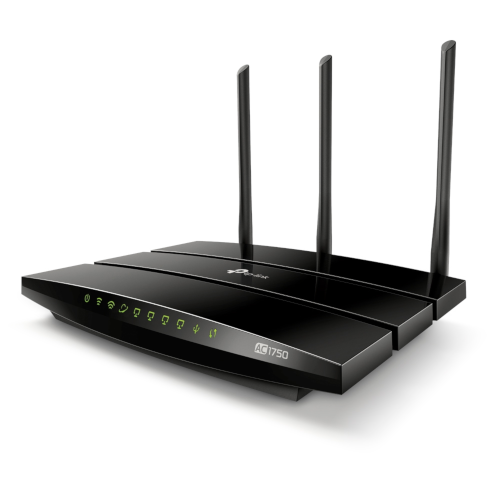
Using older equipment
Even though your router’s hardware (and software) can be somewhat outdated, compared to more recent devices, there is possibility that your device can serve you better with the different software.
Manufacurer’s latest firmware release for this router is Archer C7(EU)_V5_1.2.1 Build 20220715 and it is published 2022-11-08. Even though this device isn't discontinued by TP-Link and there aren't any newer firmwares for it I do have my doubts that this would be most stable and secure choice to use as this router's firmware.

OpenWRT has active community support
Before making changes to your device I suggest you study your router model comprehensively at OpenWRT site. You should check release notes and if there has been any issues with other users when trying to install and use the firmware you’re about to flash to your device.
Updating stock firmware
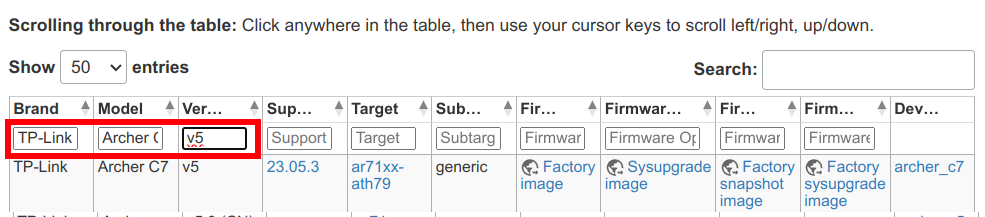
Firstly you have to identify your product. Check the bottom of your router for device model. You can find information on your device and whether it is supported using OpenWRT’s Table of Hardware. In the below I have filled the information in “Brand”, “Model” and “Version” boxes. The table updates automatically when information is filled in. In my case results show “Supported current release” (being OpenWRT version 23.05.3 when writing this) and information on “Target” hardware configuration and four URLs for getting OpenWRT images.
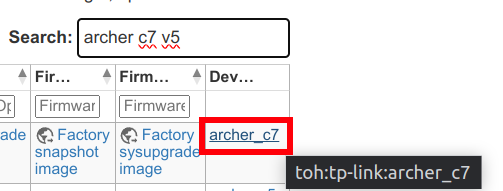
You can browse to your device’s specific information using “Device page” tab link.
Downloading right firmware image
You can choose right firmware version for your device using "Firmware selector" page by typing your device and using drop down menu for selecting desired version.

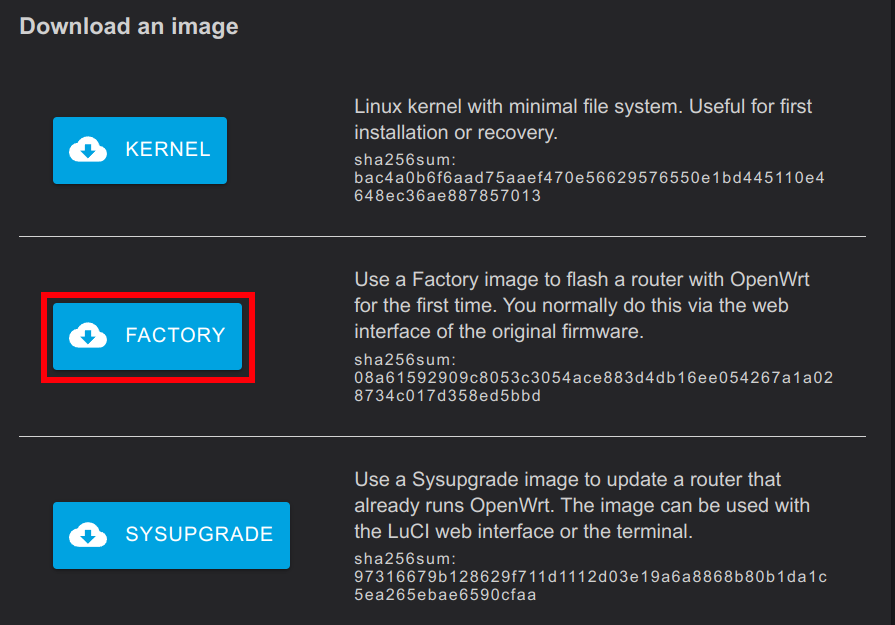
After selecting version download right image for your purpose. We are using "Factory" image as we are flashing OpenWRT for the first time.
Updating existing OpenWRT installation
Unlike many Linux distributions it is not recommended to update OpenWRT installation from shell.
BusyBox v1.36.1 (2024-03-22 22:09:42 UTC) built-in shell (ash)

  _______                     ________        __
 |       |.-----.-----.-----.|  |  |  |.----.|  |_
 |   -   ||  _  |  -__|     ||  |  |  ||   _||   _|
 |_______||   __|_____|__|__||________||__|  |____|
          |__| W I R E L E S S   F R E E D O M
 -----------------------------------------------------
 OpenWrt 23.05.3, r23809-234f1a2efa
 -----------------------------------------------------
root@OpenWrt:~#
Use a Sysupgrade image to update a router that already runs OpenWrt.
To be continued...